 kodo
kodoOpen a template
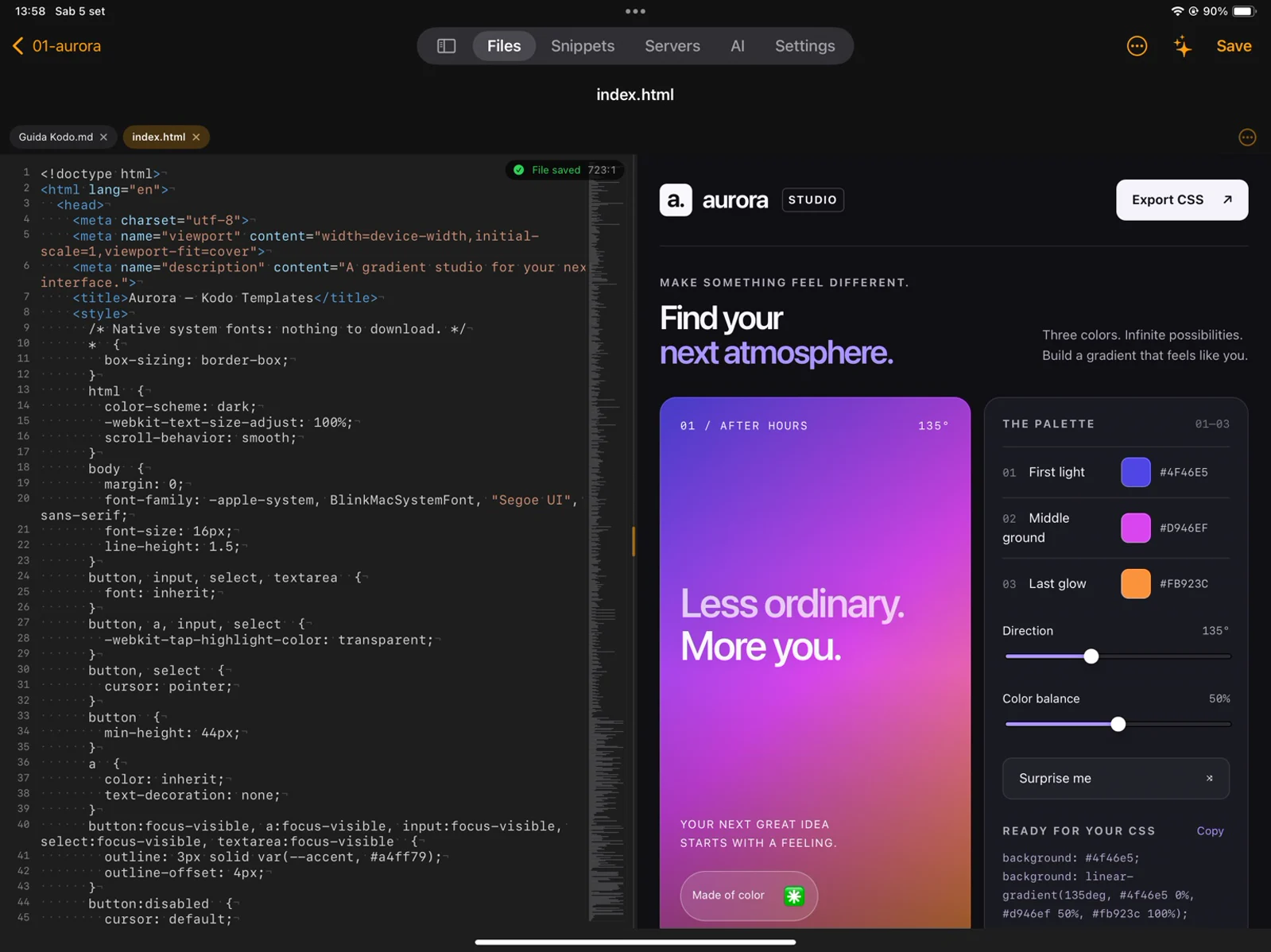
Download a ZIP, extract it in Files, then open its folder in Kodo. Use the top-level index.html for the simplest preview. The source folder contains an alternative version with separate HTML, CSS and JavaScript files; keep those files together.
Preview a web page
Open index.html and launch Preview. Make a small text or color change, save and refresh if needed. Use the different preview sizes to check the layout. Changes to the standalone file and the source version are independent.
Use local AI
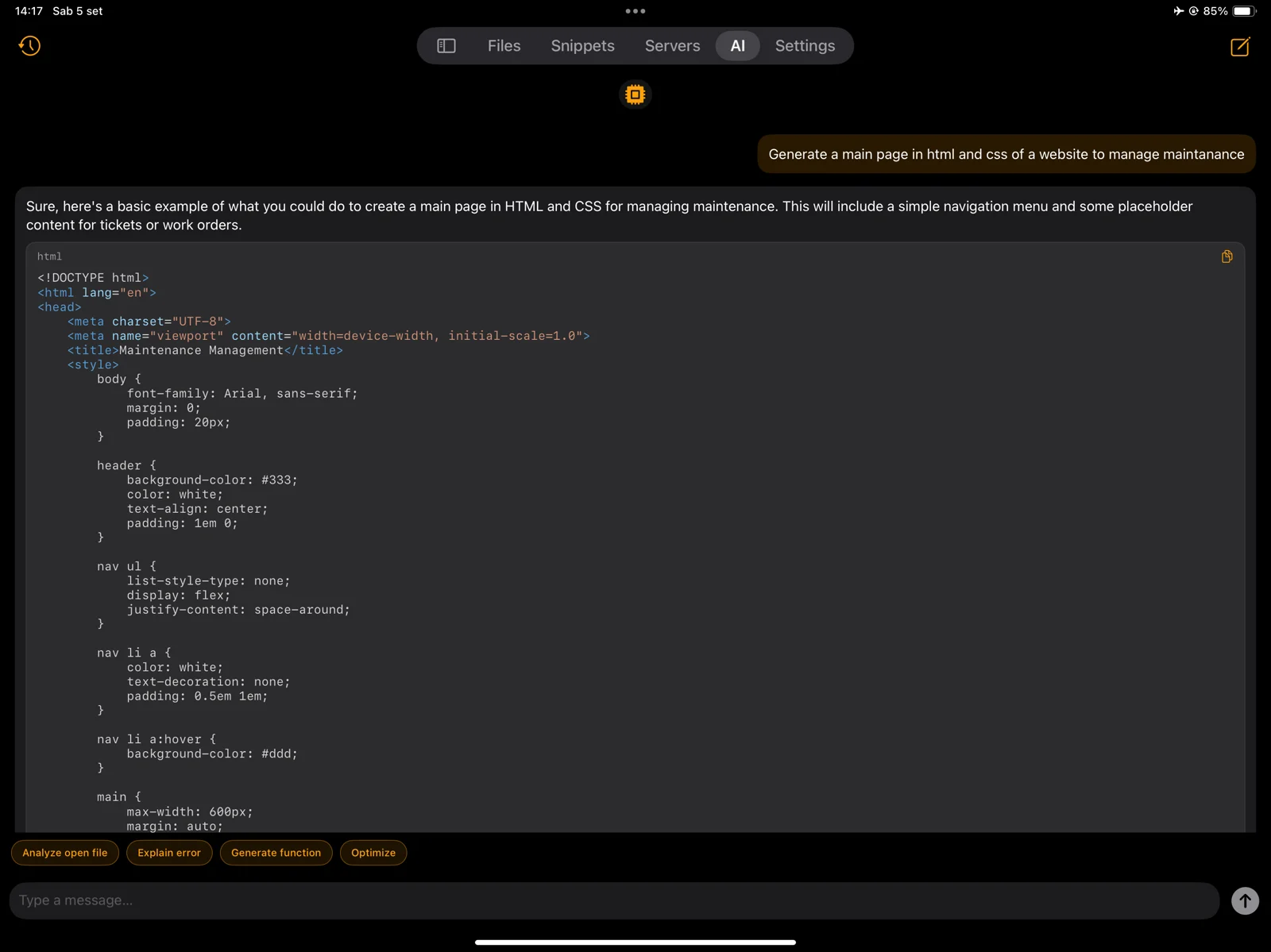
Open AI in Kodo and download a model while online. Start with a small model supported by your device. Ask about selected code, review the answer and apply only the changes you want. Downloaded models can work without a network; memory and device speed matter.
Connect to a server
In Servers, add your own server details and the supported authentication method. Use SFTP to browse files and SSH for commands. Start with a test folder and back up files before saving changes to a live server. Credentials are stored in Apple Keychain.
Work with SQLite
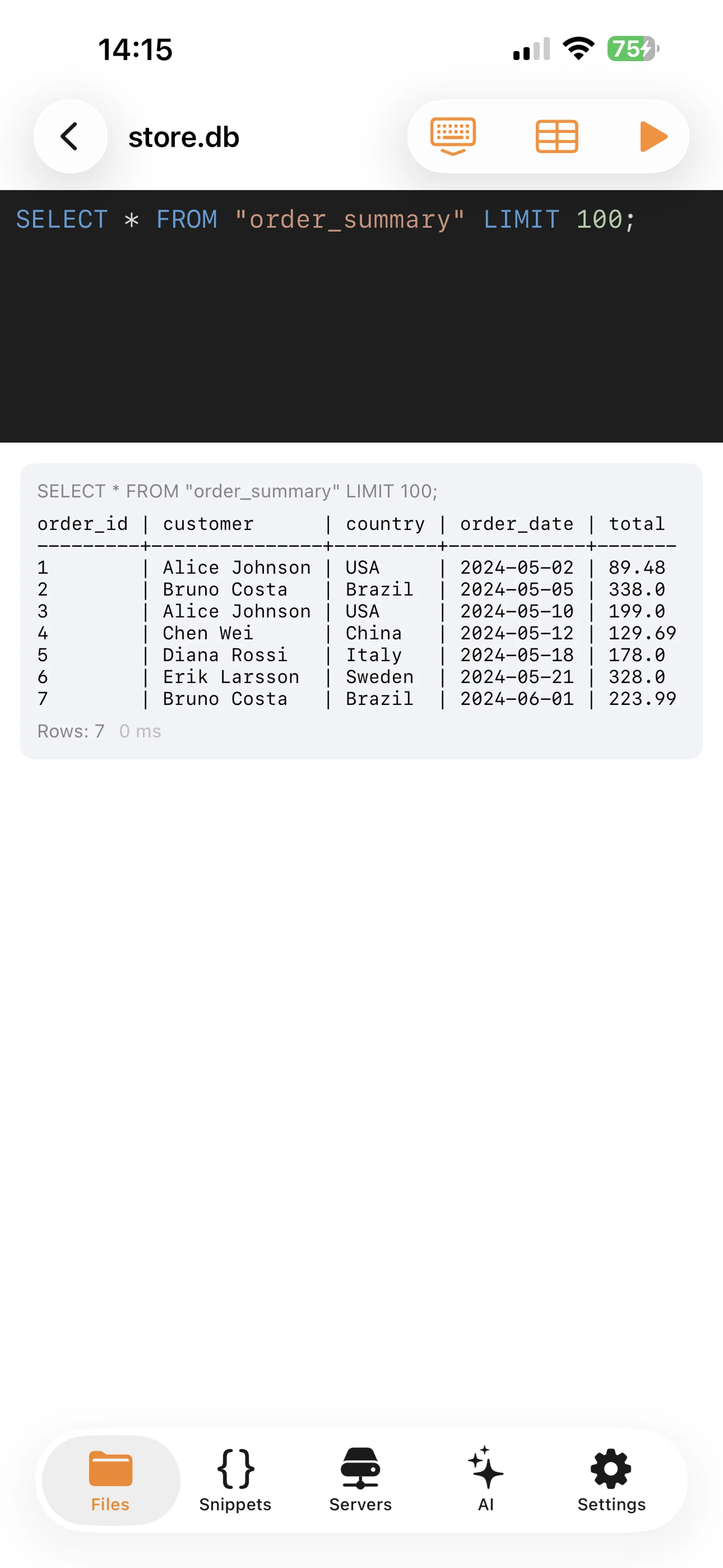
Open a .db or .sqlite file in Kodo and run a SELECT query to inspect a table. Use a copy of your database while learning. SQLite works locally; it is not a connection to a remote MySQL or PostgreSQL server.
Choose the right runtime
Use the local preview for browser code. Use SSH for Python, PHP, Node.js or compiled languages installed on your server. This website is a browser playground, not the full Kodo app.
Need a hand?
Email a short description, your device and the Kodo version. Do not include passwords or private keys.
info@ttstudio.net